From the Admins tab, you can view and manage who else has administrator privileges to oversee your organization's users and settings.
? Reviewing your Admin Team
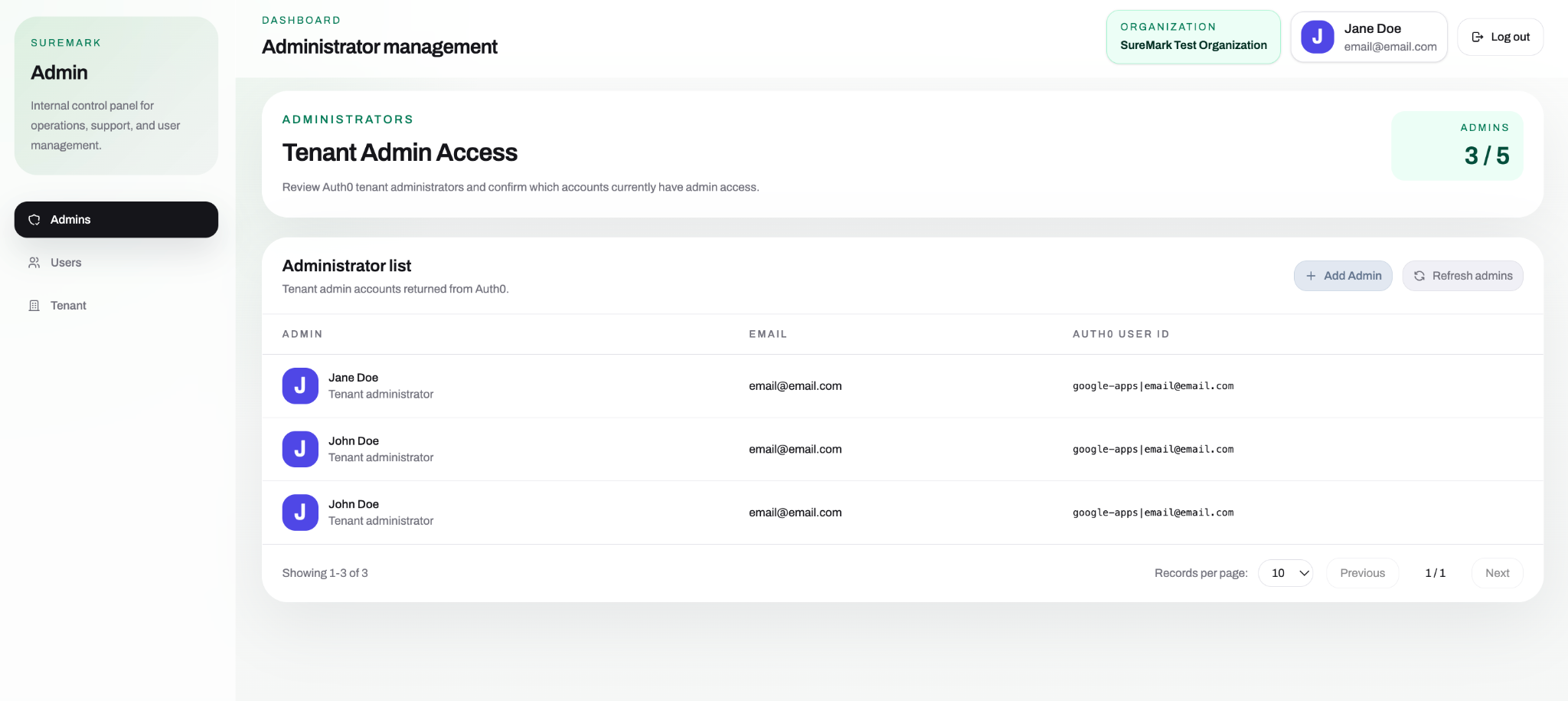
The dashboard provides a real-time overview of your current management team:
- Admin Count: View how many administrator seats are currently filled out of your organization's total limit (e.g., 3 / 5).
- Admin Details: The table displays each administrator's name, profile photo, corporate email address, and unique User ID.
➕ Granting Admin Privileges
If you need to grant workspace management access to another teammate:
- Navigate to the Admins tab.
- Click the + Add Admin button in the top right corner of the list.
- Enter the new administrator's details to link their account.
- Tip: If a newly added admin doesn't appear in the roster right away, click the ↺ Refresh admins button to force a quick sync and update the list.
Was this article helpful?
That’s Great!
Thank you for your feedback
Sorry! We couldn't be helpful
Thank you for your feedback
Feedback sent
We appreciate your effort and will try to fix the article