Welcome to the SureMark Enterprise App! We have officially transitioned from our testing phase to production for iOS, with our Android release coming very soon. Follow the guides below to get started.
iOS Users:
The SureMark Enterprise App is officially live on the Apple App Store. You no longer need to use TestFlight.
- Open the App Store on your iPhone
- Search for SureMark Enterprise and download the app. https://apps.apple.com/us/app/suremark-enterprise/id6765613167
Android Users:
- Open the Google Play Store on your phone
- Search for SureMark Enterprise and download the app. https://play.google.com/store/apps/details?id=digital.suremark.enterprise&pcampaignid=web_share
Logging In for the First Time:
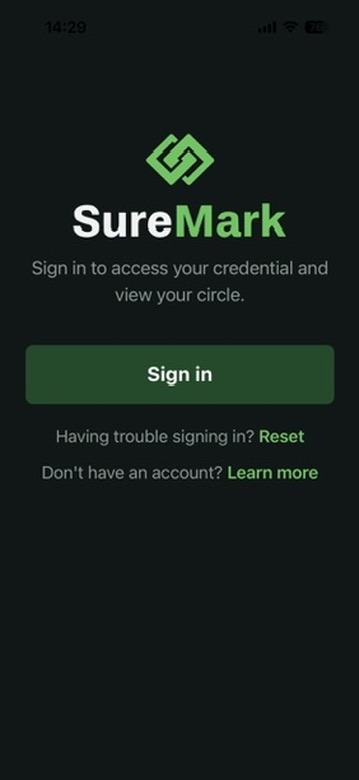
When you first open the app, you will be prompted to sign in.
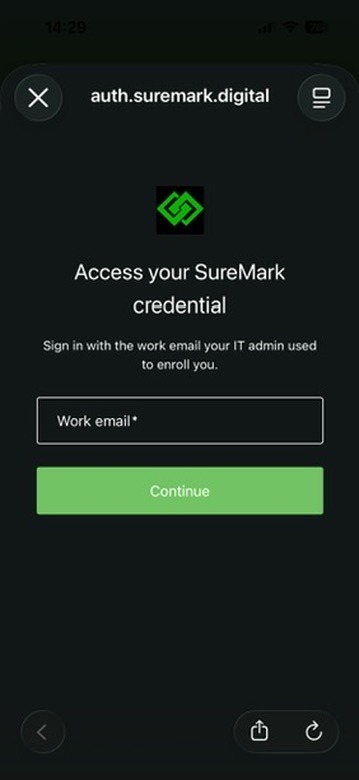
- Enter your work email address.
- Complete the secure authentication process via Auth0 (using your organization's single sign-on or credentials).
ℹ️ What is Auth0? > Auth0 is our secure identity platform. When you log in, you will safely be redirected to a standard sign-in page to enter your organization's single sign-on (SSO) credentials or password.
Once signed in, you will be taken to your main dashboard where you can see your Internal Circle members, External Circle members, and individuals on the Public Registry.
Sending a Challenge:
To verify the identity of a colleague or contact:
- Locate the person you wish to challenge from your SureCircle or the public registry.
- Check their status: A green dot on their profile indicates they are currently online and signed in. Note: Users must be online and signed in to receive a challenge.
- Tap on their Name Card. This will expand to display their name, photo, SureMark credential, and the specific Circle they belong to.
- Tap the Challenge button to issue the identity check.
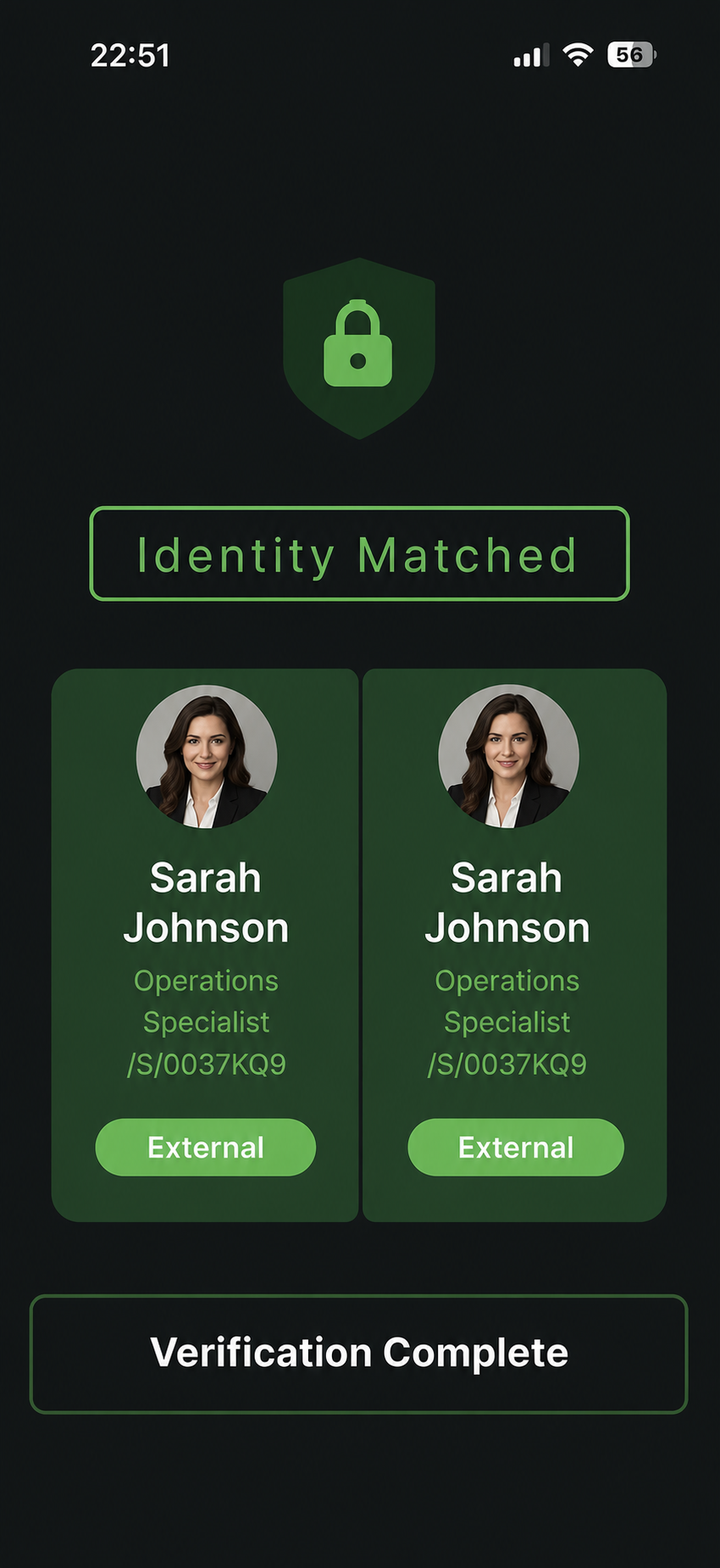
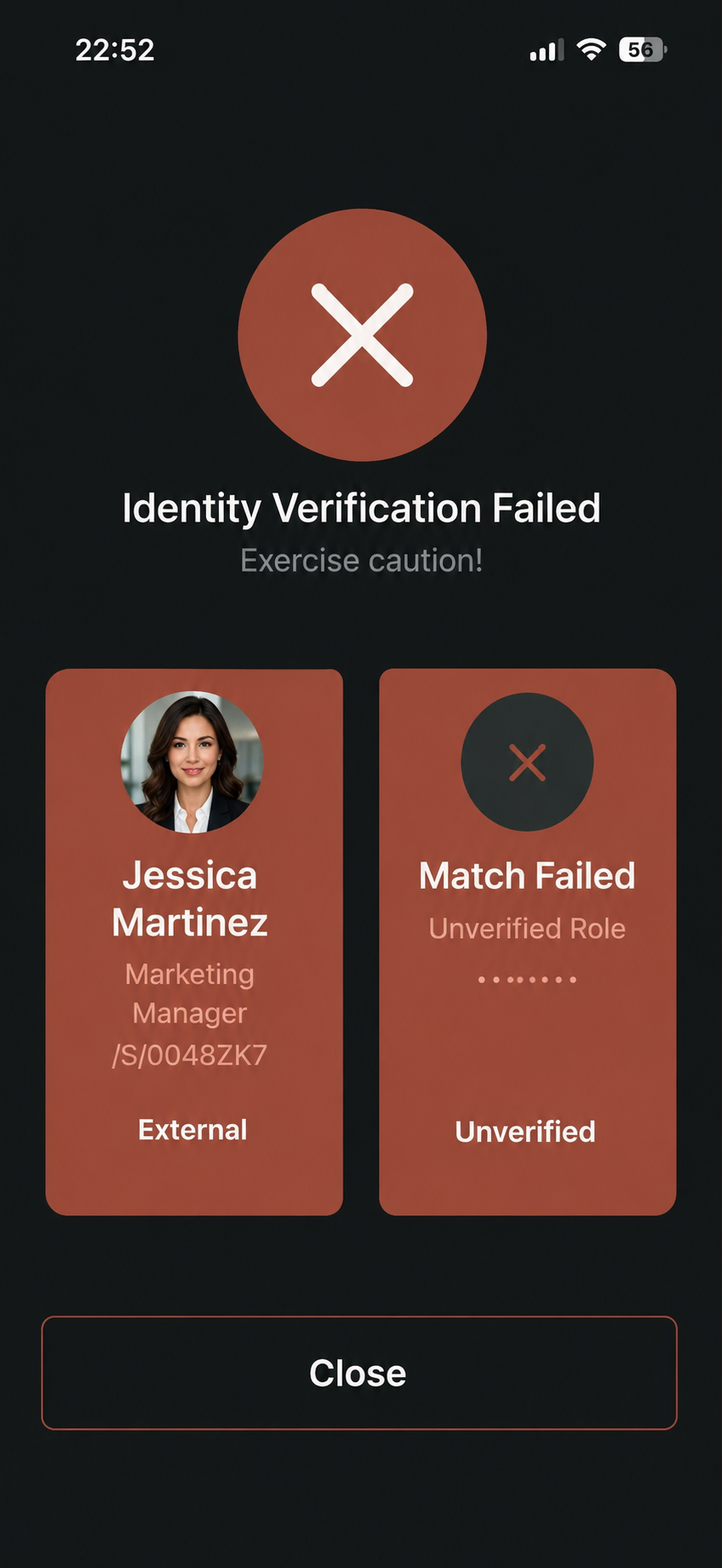
- A countdown timer will appear while you wait for their response. You will receive a real-time notification indicating whether the challenge was Successful or Failed.
Receiving a Challenge:
When another user issues an identity challenge to you, a secure model will immediately pop up on your screen.
- To approve and verify your identity, simply authenticate using your device's biometrics (FaceID/TouchID) or your passcode.
Administrator Notice:
Once you have downloaded the mobile app and completed your initial sign-in, please reach out to your tenant administrator to ensure your account is properly mapped and authorized within your organization's directory.
Was this article helpful?
That’s Great!
Thank you for your feedback
Sorry! We couldn't be helpful
Thank you for your feedback
Feedback sent
We appreciate your effort and will try to fix the article