Please visit https://app.suremark.digital/login to activate your SureMark credential:

To begin, please enter your email address on the form and press "Request One Use Password"
Next, check your email inbox for an email titled "Login Verification Required for Your SureMark Account"
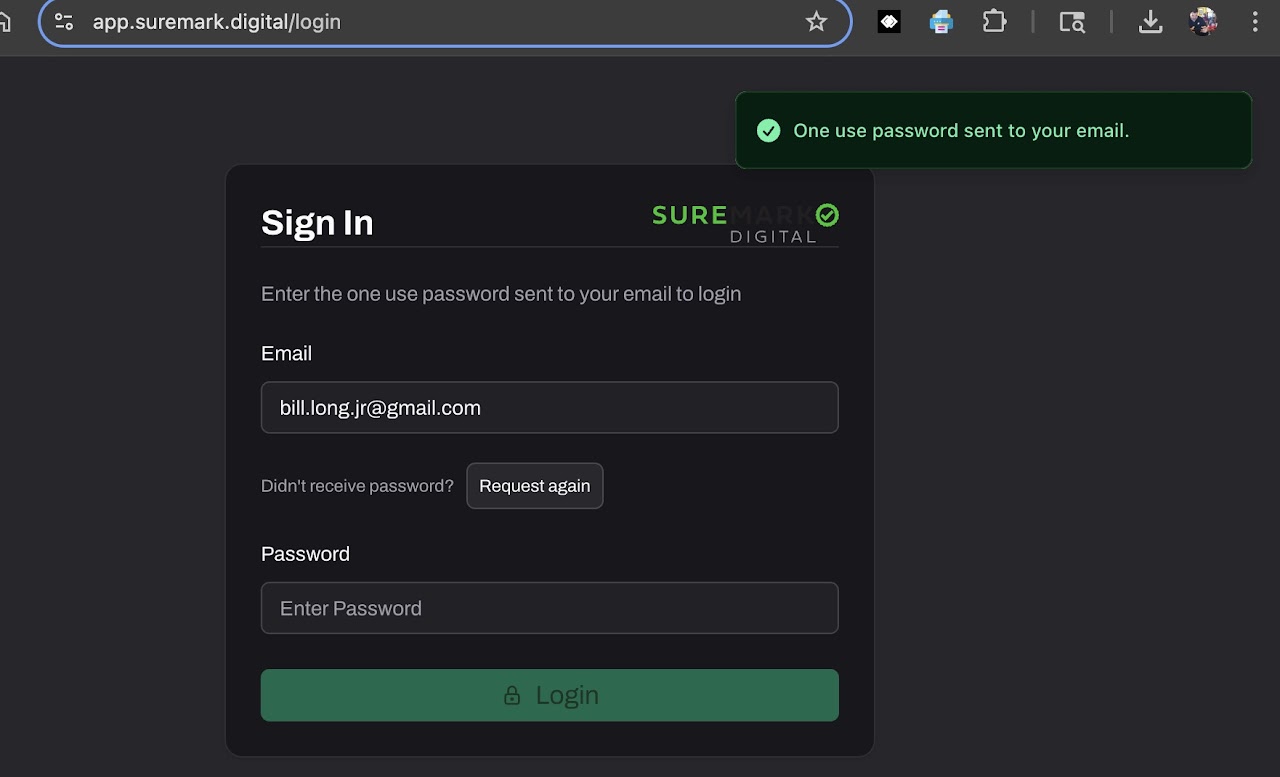
Enter the one use password that was sent to you via your email, into the "Enter Password" box
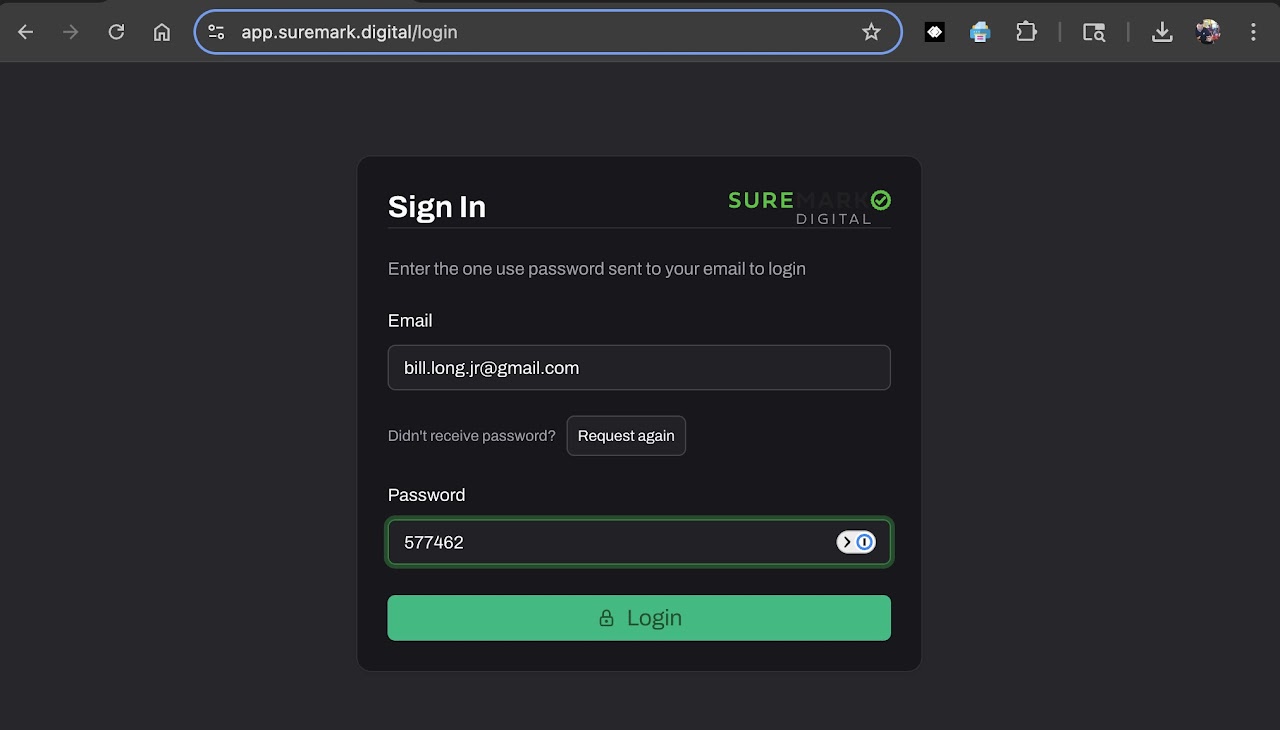
Click the "Login" button to sign in
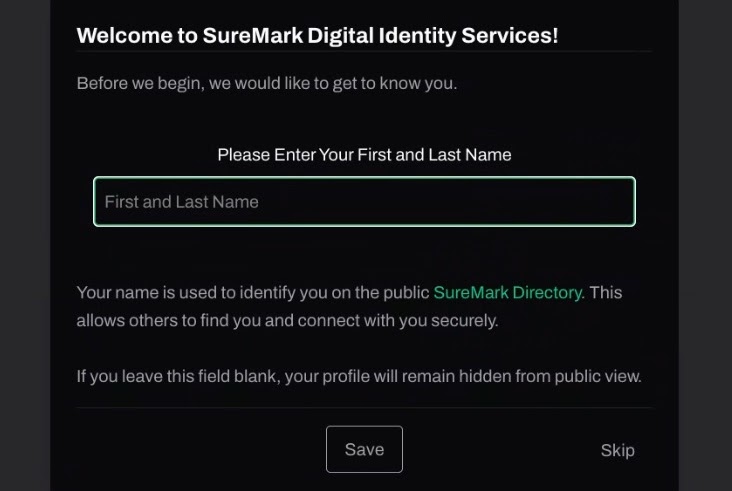
Please enter your First and Last name
If you would like to stay anonymous, please do not add your name
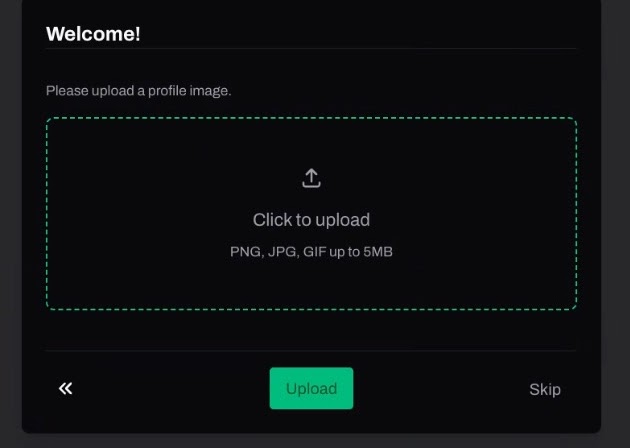
On this screen you have the option to upload a photo
If you would like to stay anonymous, please do not upload a photo
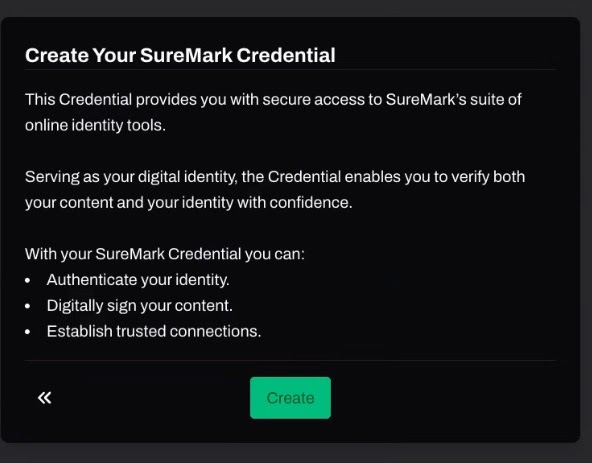
Click the the "Create" to complete your secure password
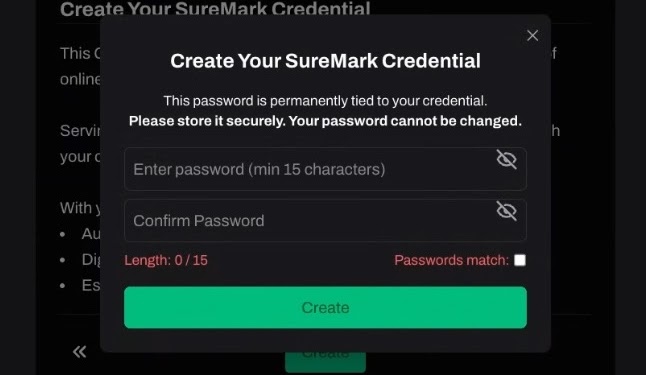
Enter a strong password with at least 15+ characters (you can use numbers and symbols, too)
DO NOT FORGET THIS PASSWORD ( This will be needed to sign all content and verifications)
You can use a personal password manager to hold the password securely
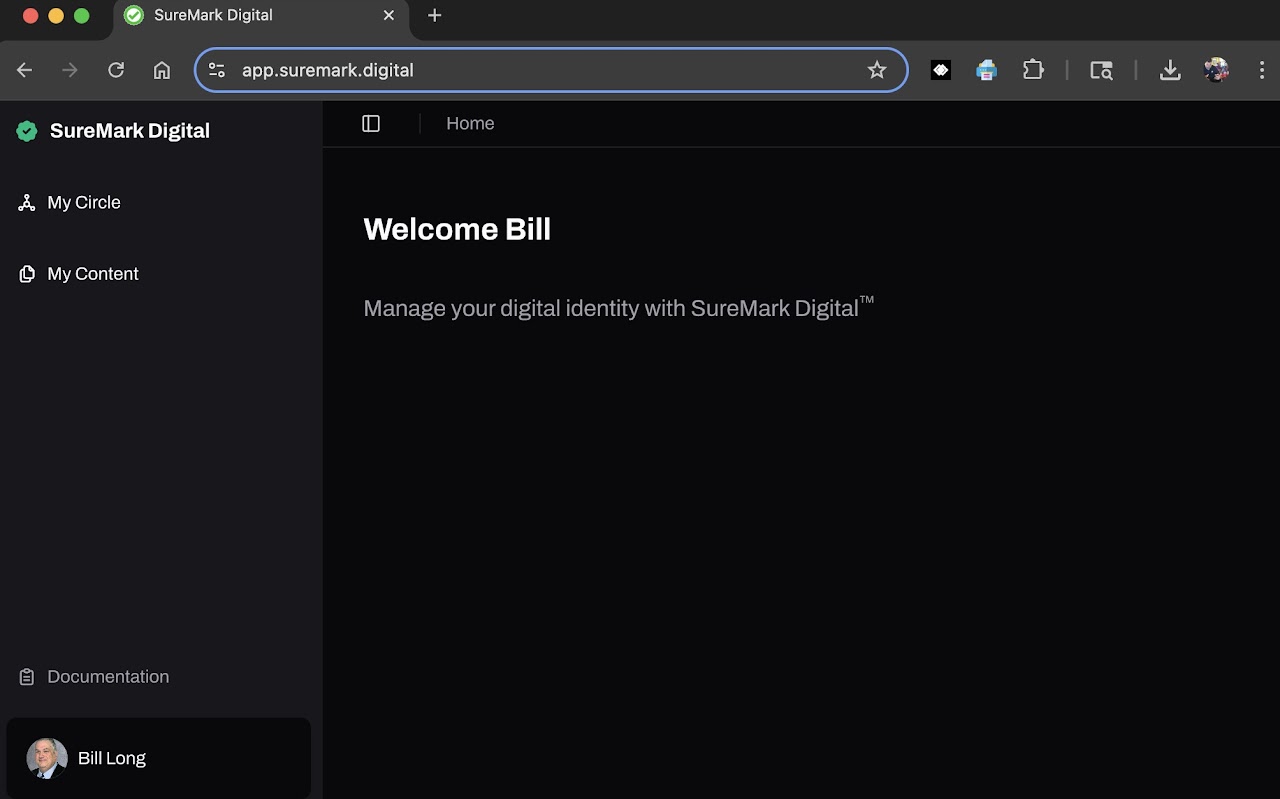
When you see this screen you have completed the SureMark credential process.
Was this article helpful?
That’s Great!
Thank you for your feedback
Sorry! We couldn't be helpful
Thank you for your feedback
Feedback sent
We appreciate your effort and will try to fix the article